Running MatterSim and other Python-based Machine Learning Models
Using MatterSim bank workflow
Copy bank workflow
The easiest way to run MatterSim calculations is to use an existing bank workflow. Before we can use a workflow to create a job, we need to copy it to to our own account.
- Navigate to the workflows bank from the left sidebar.
- Search for "MatterSim" and click "Copy" in the action column on the workflow
you want to use.
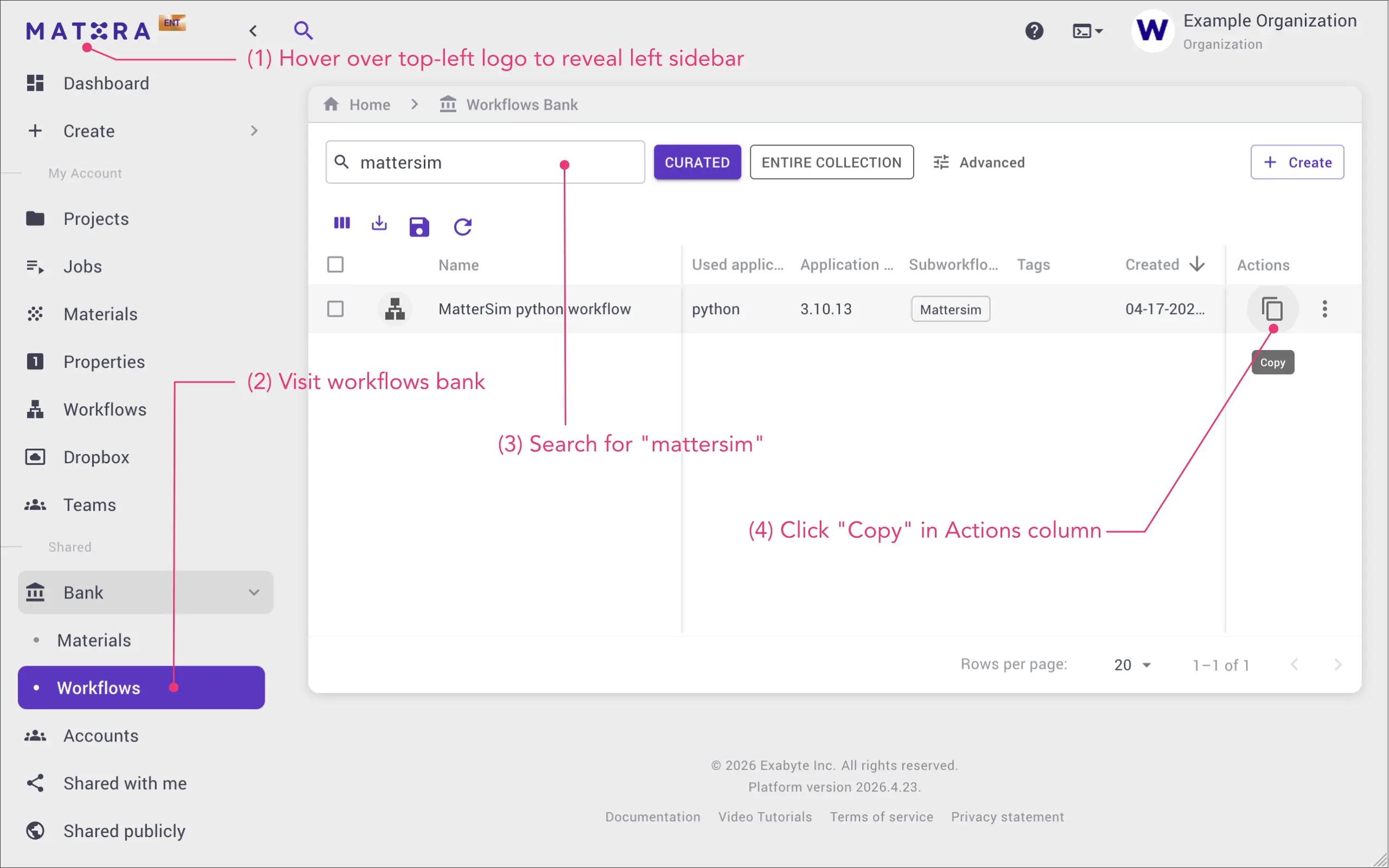
- Now the workflow will appear in your own workflows list, and will be available for selection in job creation process.
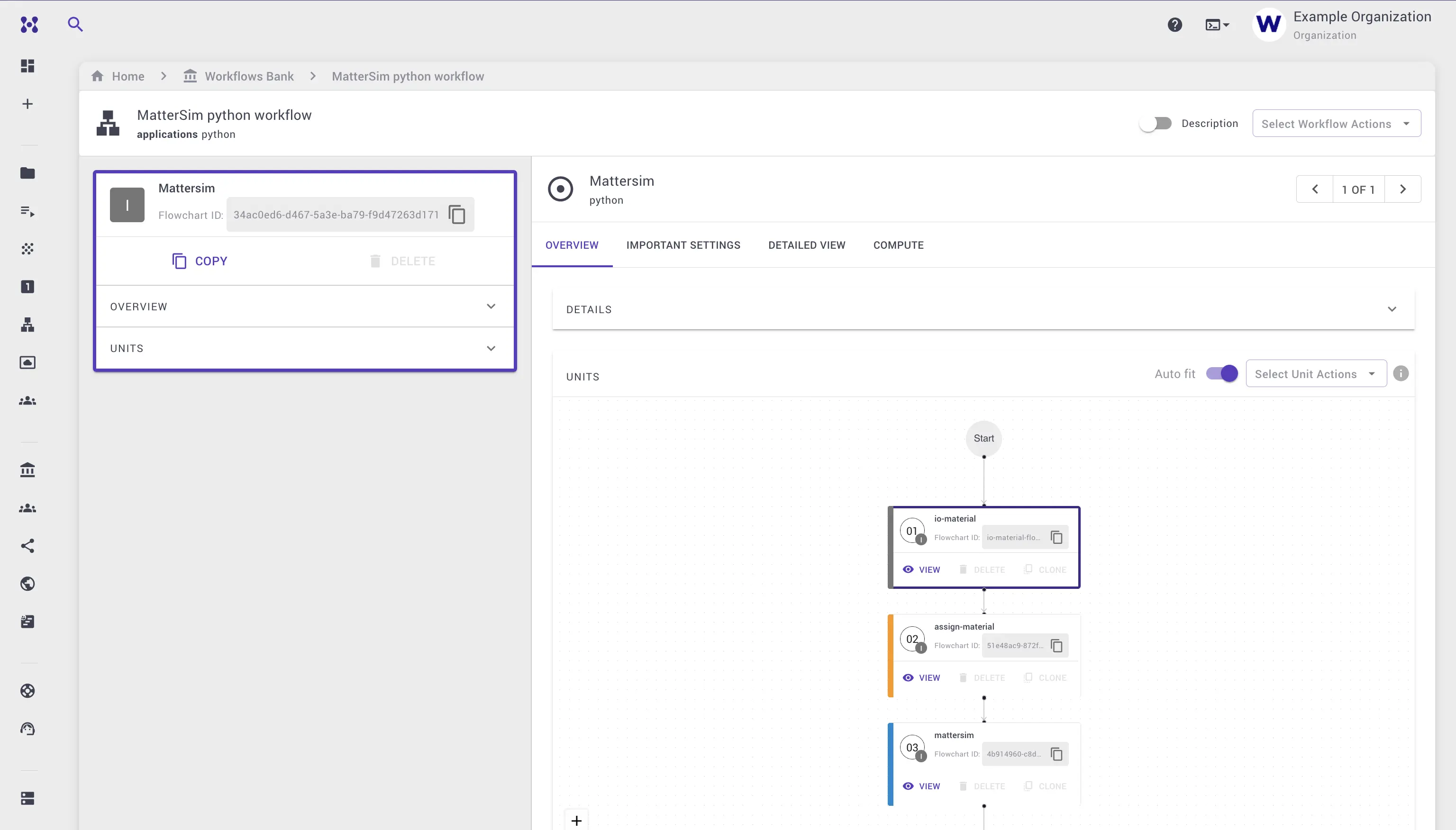
- We can open the workflow for inspection and further modification if needed.
The workflow is consists of three units:
- Input/Output unit: This unit is used to fetch materials data from the job context. The response is an array of materials.
- Assignment unit: This unit is takes the first item of the above array and
assigns a new variable named
MATERIALin the global scope. - MatterSim unit: Creates ASE material definition from
MATERIALand runs the MatterSim calculation to predict various material properties.
Create and submit job
- Navigate to the jobs designer page from the left sidebar.
- Click "Create New Job".
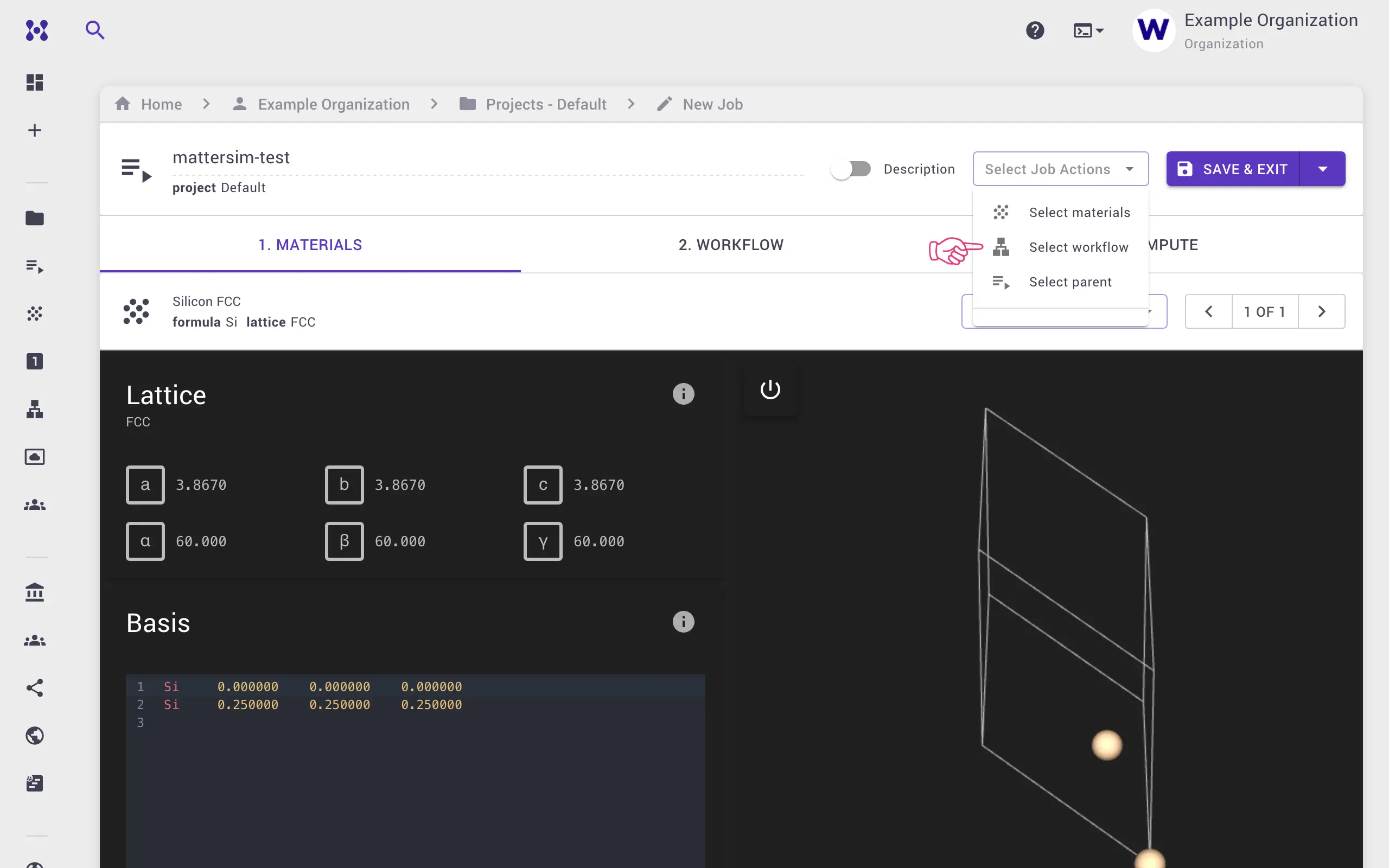
- Click on the "Select Job Actions" drop-down menu, and select the material and workflow you want to use.
- We will proceed with the default material, which is Silicon, and select "MatterSim Python Workflow" that we just imported.
- Save and exit the job designer.
- Now the job is ready for submission. Click on the "Run" button in the "Actions" column.
- Once the job is completed, we can open job viewer page to see the results. We can open the MatterSim unit under workflow tab to see the standard output. All the input and outputs are available under the "Files" tab.
Creating MatterSim workflow
In this section, we will describe how to create a new workflow and use MatterSim
flavor/
- Navigate to the workflows page, and click on the "Create" new workflow button.
- Expand the "Details" section, select "Python Script" as application.
- Add a "executable" unit, and click "EDIT" unit button.
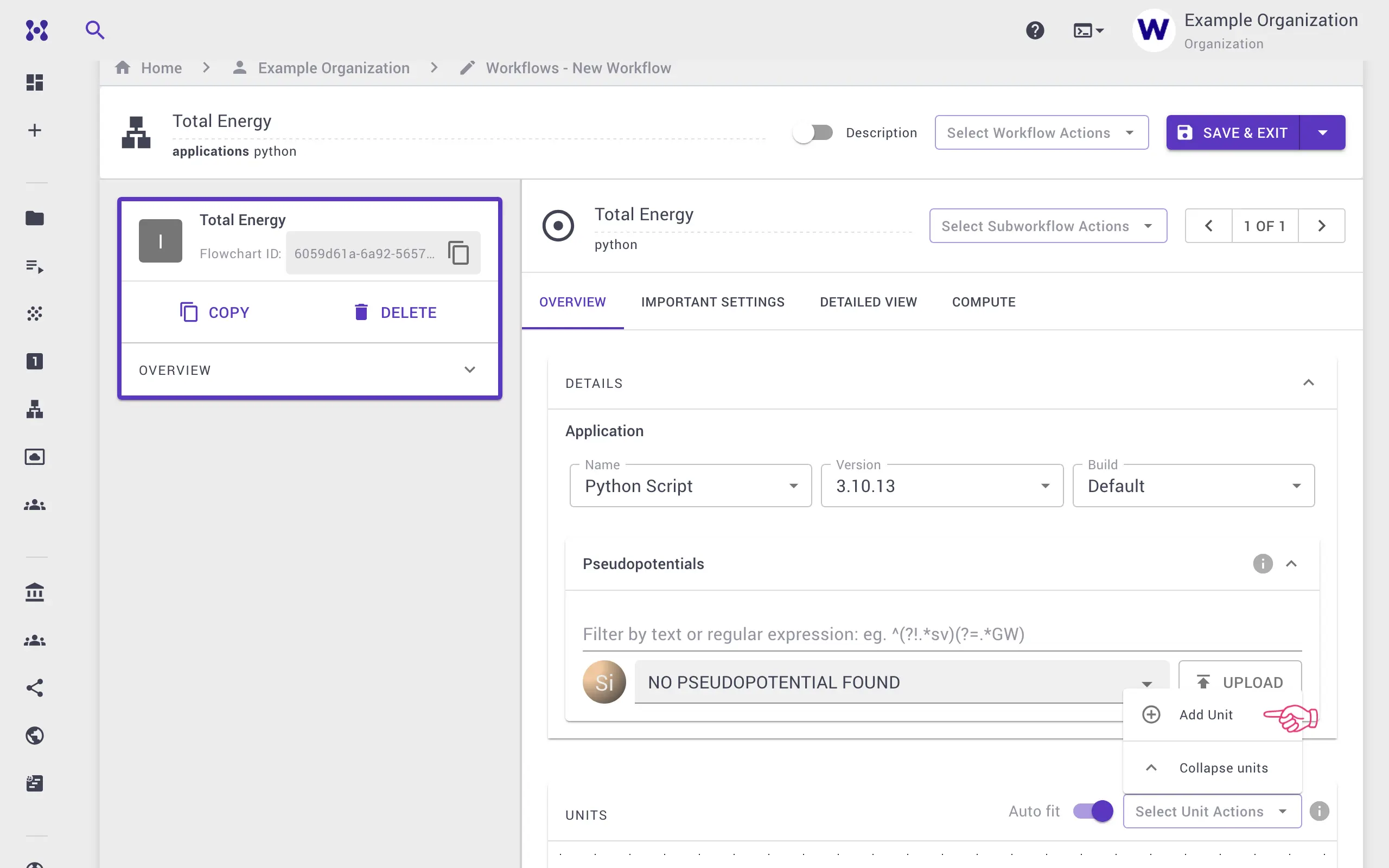
- Expand the "Details" section, and select "mlff: mattersim" as flavor.
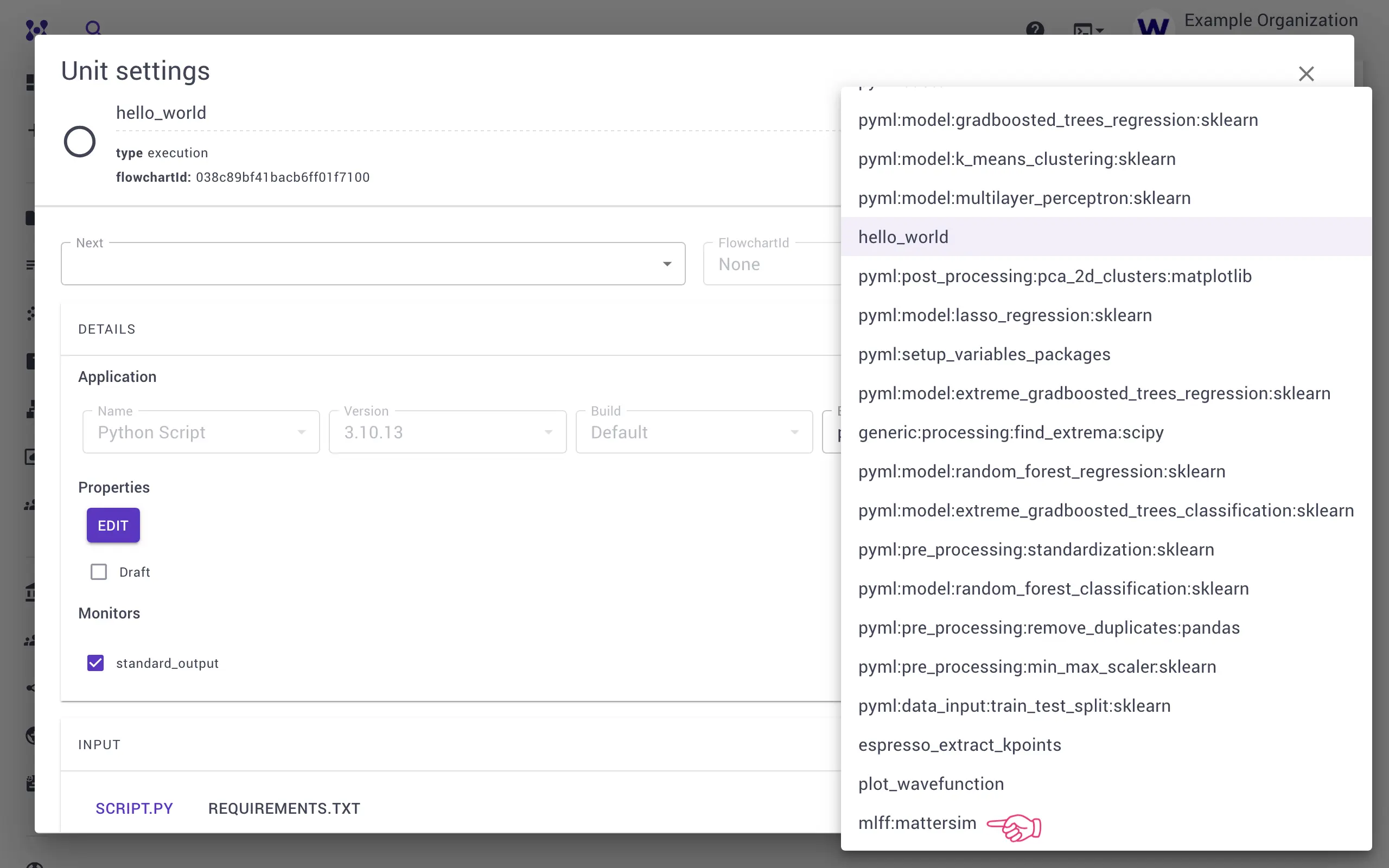
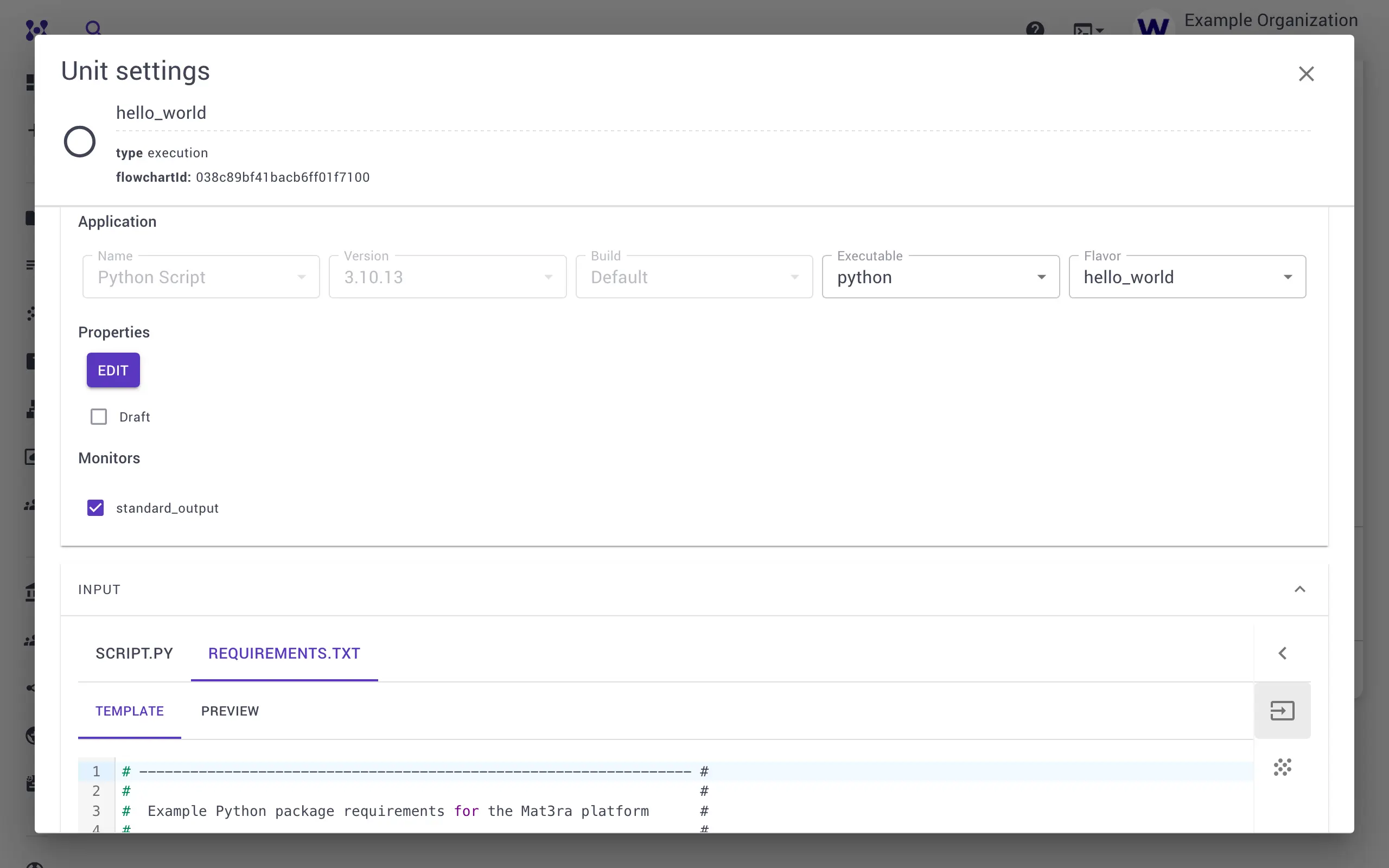
- Scroll down and edit the Python script if necessary. In this case, we want to use ASE library to create a material definition, instead of getting material from the job context.
| SCRIPT.PY | |
|---|---|
1 2 3 4 5 6 7 8 9 10 11 12 13 14 15 16 17 | |
- Close unit modal by clicking on the "X" button in the top right.
- Save and exit the workflow editor.
- Now we can create a new job using this workflow, as we did in the previous section.
Running other Python-based Machine Learning Models
If you want to run other Python-based Machine Learning Models, you can create a
new workflow and use the same approach. In this case, select default "Python"
flavor/
Step-by-step Video Tutorial
In the below animation, we walk you through the whole process.